

Last updated: August 2026
Short-term rental hosts can set their listing up with automatic messages that are sent out when specific criteria are met. These automated messages can be extremely helpful and time-saving for hosts, as they allow you to respond quickly to inquiries and provide important information without having to manually reply every single time. In this blog post, we’ll discuss Airbnb automated messages and how they can help you run your rental business more efficiently.
Host Tools provides an automated, unified calendar for short-term rental hosts, allowing you to seamlessly list on all major channels. Start your free trial today!
Yes – you can schedule automated guest messages. Airbnb’s own saved messages still have to be sent by hand, so scheduling them means connecting a third-party tool such as Host Tools to your account. You create a message rule, choose the event that triggers it – a new booking, an upcoming check-in, a completed check-out, even a smart lock opening – and set how long before or after that event the message should go out. From then on it sends itself.
What Are Airbnb’s Saved Messages?
Saved messages are Airbnb’s built-in templates: you write a message once and insert it into a guest thread yourself. They cut down the typing, but you still have to send every one manually, at the right moment.
Before Airbnb introduced its saved messages feature, most Airbnb hosts used to keep their message templates in Google Docs or a note-taking app on their smartphones. They would copy and paste those templates into Airbnb for each guest. It was a tedious process that wasted a lot of valuable time.
Now, there’s no need to go through all this trouble. Airbnb lets you save pre-written messages and store them for later use under ‘Saved messages’. You can build up a complete library of message templates for every occasion, including replies to your most commonly asked questions, booking confirmation messages, welcome messages, and more.
Once you have an assortment of message templates to choose from, you’ll spend less time replying to inquiries and trying to make sure your guests feel taken care of before, during, and after their stay.
While Airbnb’s saved messages function is handy, it won’t solve all your problems when it comes to guest communication.
Why Saved Messages Aren’t Enough
Saved messages fix the writing problem but not the timing problem. You still have to be awake and watching your inbox to send each one, which is why most hosts move to a tool that sends them automatically.
Yes, the saved message templates will save you from having to write each message from scratch, but still, you’ll have to customize each message and send it manually at the right time and as fast as possible.
There’s a much better solution that can save you a lot more time and truly help you to automate your guest communication: third-party messaging automation tools.
How do Airbnb Automated Messages Work?
Automated Airbnb messages work by connecting a third-party tool to your account. The tool watches your reservations and sends a pre-written template the moment a chosen event happens. You set the rules once and the timing is handled for you.
Messaging automation tools like Host Tools connect to your Airbnb account. They not only let you save and reuse message templates, but they also allow you to send automated messages.
With the help of messaging tools, you can stay on top of your guest communication and be constantly in touch with your renters without ever having to press the ‘Send’ button.
Once you set it up, the tool does everything for you and you can spend time on other aspects of your business that require your attention.
Now, let’s take a look at how to use messaging automation tools and how to automate your Airbnb messages with Host Tools.
How to Automate Airbnb Messages With Host Tools
Host Tools automates your messaging through message rules: pick the event that triggers the message, write the template, personalize it with tags, then fine-tune exactly when it sends. A rule can apply to one listing, a listing group, or all your listings at once.
Host Tools has a rule-based automated messaging system.
It allows you to set up message rules and customize message templates to be sent to your guests or cleaners.
This solution makes it easy to set up automated messages for every scenario you could possibly think of.
All you need to do is come up with a list of messages to cover every stage of the Airbnb message flow, from booking confirmation to check-out and beyond.
Then, you can set up message rules for each of these stages and just like that, you’ve successfully set up an automated guest communication flow.
What are message rules?
Message rules are sets of criteria that determine when to send an automated message, what the message should contain, who to send it to, etc.
They are the basis of Airbnb automated messages in Host Tools.
How to add a message rule
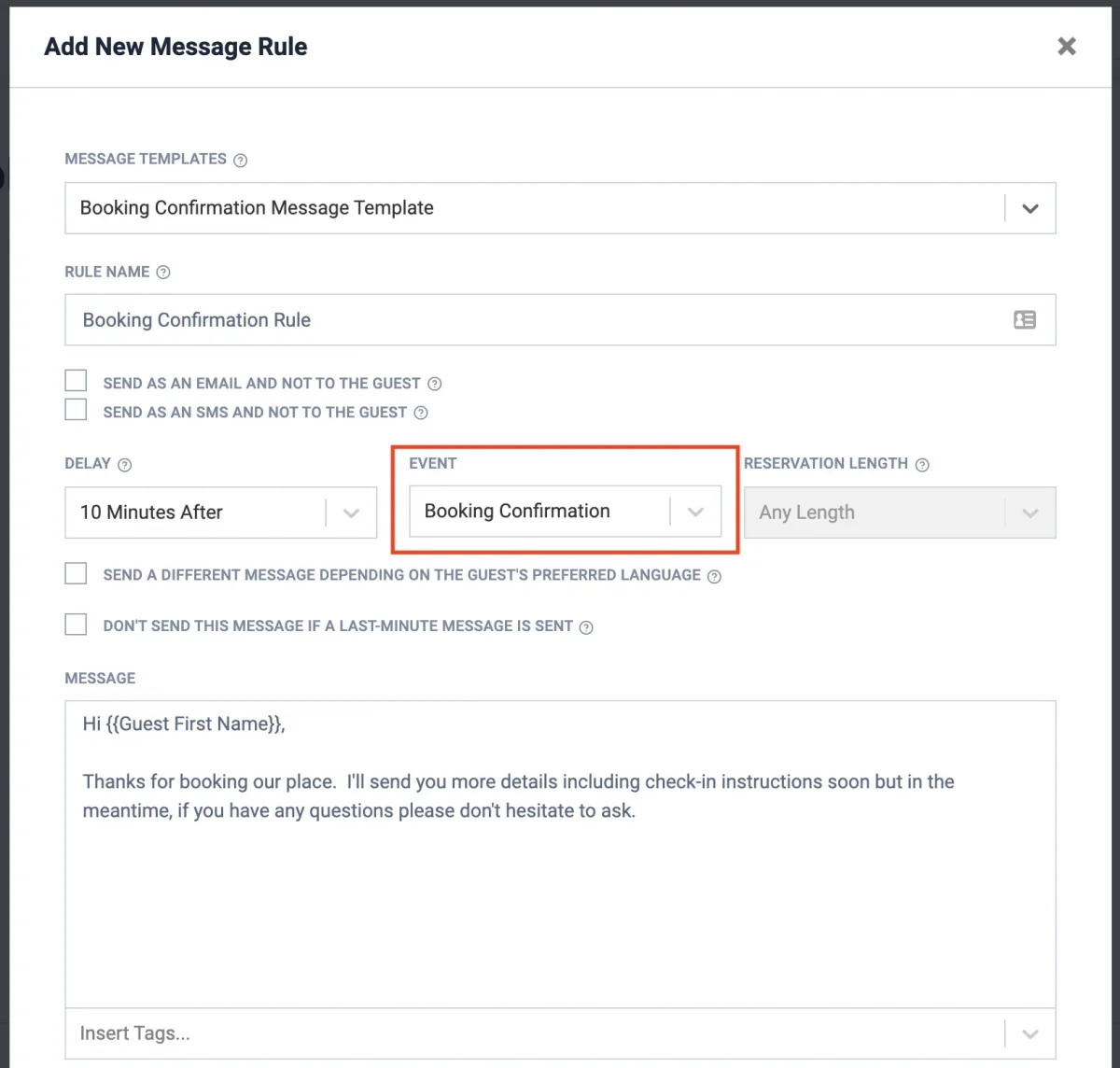
Adding a message rule in Host Tools is simple. Just go to ‘Messaging’ and click ‘Add rule’.
To get started, you can select one of the premade message templates and customize it as needed. Host Tools has ready-made templates that are based on the most commonly used message types.

Next, you can choose the event that triggers the sending of the message, add message tags to customize each message automatically, and fine-tune your settings.
Once you save your message rule, it’s active. This means that when the parameters you’ve set up for your message rule are met, an automated message will be sent to your guests or cleaners.
Now, let’s take a closer look at the different parameters you can set up for your Airbnb automated messages.
What are events?
Events are parameters that trigger the sending of automated messages. In other words, they tell the messaging automation software when to send a particular message.
For example, if you want to get in touch with your guests immediately after their booking is confirmed, you can select ‘Booking Confirmation’ as the event that will trigger your message.
Or, if you want to send your guests a welcome message as soon as they arrive at your rental, you can select the event “Door Was Unlocked”. Host Tools has a smart lock integration. This way, the system will be alerted once the guest uses their unique access code to unlock the door, and instantly send them a message.
Here are the events that you can choose from in Host Tools:
Check-In
Check-Out
When Occupied
Booking Inquiry
Pre-approval Expired
Booking Request
Booking Confirmation
Door Was Unlocked
Check-In Changed
Check-Out Changed
Number of Guests Changed
Number of Pets Changed
Booking Cancelled
The ‘When Occupied’ event also lets you pick a day of the week, so you can schedule a message that repeats during a guest’s stay – a trash day reminder, for example.
What are message tags?
Message tags allow you to personalize your Airbnb automated messages.
They pull information from the booking that’s unique to the guest, such as their name, time of arrival, booking ID, etc.
This way, when a guest receives your message, they won’t feel like it’s an impersonal, copy-and-paste message sent by a computer.
Instead, you’ll be able to establish a rapport by calling guests by their names and including their booking details and other information specific to them in the message.
When adding tags to your messages in Host Tools, they will appear in double curly brackets, like this:

Of course, when guests receive your message, they will see their name and the check-out time filled in.
If you’re ever unsure whether your tags are working correctly, save the message rule and go to the dashboard. There, you can see what the actual message will look like for each guest.
Here are some of the tags that you can use in Host Tools:
Listing Title: {{Listing Title}}
Listing Nickname: {{Listing Nickname}}
Channel Listing ID: {{Channel Listing ID}}
Listing Address: {{Listing Address}}
Guest First Name: {{Guest First Name}}
Guest Last Name: {{Guest Last Name}}
Check-In Date: {{Check-In Date}}
Check-In Time: {{Check-In Time}}
Check-Out Date: {{Check-Out Date}}
Check-Out Time: {{Check-Out Time}}
Number of Nights: {{Number of Nights}}
Number of Guests: {{Number of Guests}}
Guest Phone Number: {{Guest Phone}}
Guest’s Lock Code (last 4 of phone number): {{Guest Lock Code}}
Guidebook URL: {{Guidebook URL}}
Listing City: {{Listing City}}
Number of Bedrooms: {{Number of Bedrooms}}
Number of Pets: {{Number of Pets}}
Confirmation Code: {{Confirmation Code}}
Channel: {{Channel}}
WiFi Network Name: {{WIFI Network Name}}
WiFi Password: {{WIFI Password}}
That is a selection – Host Tools has more than 40 built-in tags in total. You can also create your own custom tags, and give a tag a different value for each listing, which is useful when one message rule covers properties with different WiFi networks or parking instructions.

How to refine your message rule settings
Host Tools has additional settings that allow you to fine-tune your message rules and makes sure that they go out at exactly the right time.
Here are some of the settings you can use to optimize your messages:
Send message as an email or SMS and not to the guest. By enabling this setting, the message will be sent to the email address or phone number you provide instead of being sent to the guest. Tick this box if you want to send a message to your cleaners, for example, to notify them of new or upcoming cleanings.
Select minimum nights. This setting allows you to select the minimum reservation length you want your message rule to apply to. The message will only be sent if the stay is longer than the number of nights you specify. Use this when you want to send messages only to guests who booked longer stays.
Select minimum delay. This option allows you to select a minimum number of minutes to wait before the message is sent once it’s triggered by an event. For example, if you want to give your guests a chance to settle in before you send them a welcome message upon check-in, you can set your minimum delay to 10-15 minutes.
Only send if check-in or check-out fall on selected days of the week. Another useful setting for sending messages to cleaners, this option allows you to pick a day of the week when the message should be sent. Organizing the cleaning schedule of your rentals has never been so effortless, especially if you have different cleaners coming on different days of the week. No more double-checking schedules.
Send a different message depending on the guest’s preferred language. If the guest has set a preferred language on Airbnb, Host Tools can get that information from the channel. If you have created a message in that language, Host Tools will send it. Otherwise, it will send the default message.

Utilize Host Tools Quick Replies
Quick replies are essentially pre-written responses that you can easily insert into your messages to guests who have frequently asked question. This allows you to save canned responses with tags, so you can quickly choose them from your inbox and your message will be added to your text box. Then, you can modify the response as needed and hit send – or just send it as is. Learn more about utilizing quick replies here.
Let AI handle the replies you can’t script
Message rules are ideal for anything predictable – a check-in time, a lock code, a checkout reminder. What they can’t do is answer a guest who asks whether the sofa bed is comfortable, or if there is room to park a van. That is what the Host Tools AI Assistant is for.
Switch it on for a listing and it reads the guest’s message alongside your listing details, your quick replies and your previous conversations, then drafts a reply that answers the actual question. It works on booking inquiries, booking requests and booking confirmations.
By default it runs in suggestions-only mode: the draft appears in your inbox and you decide whether to send it. If you would rather it send on its own, auto-send is a per-listing setting with a minimum confidence threshold, plus an option to hold back anything that reads as negative in tone. Rule-based messages cover the schedule; AI covers the questions. Read more about the Host Tools AI auto-reply feature.
Can One Inbox Handle Multiple Rental Channels?
Yes. Host Tools pulls guest messages from every channel you have connected into a single unified inbox, so you reply in one place instead of logging in to each platform separately.
Airbnb is not the only listing site that Host Tools connects with. It also has direct API integrations with Vrbo, Booking.com and Houfy, and it can message guests who booked through your own direct booking site.
This means that you can extend your messaging automation well beyond Airbnb, and run the same message rules across every channel you list on.
One difference is worth knowing. On the connected channels your messages go into that platform’s own guest thread, while guests who booked direct are messaged by email. Either way, their replies come back to the same Host Tools inbox.
The unified inbox will save you lots of time since you don’t have to log in to each channel every time you want to see your messages. All messages will be there in the same platform.
With Host Tools, none of your messages will ever go missing – as they might if you use other platforms with weak channel connections.
You can rely on Host Tools to fetch all your messages from the different channels you advertise on. Host Tools is a channel manager: apart from automating messages, it also allows you to manage all your listings in one place, sync your calendars and keep your availability up-to-date across all your channels.
Airbnb Message Templates to Automate Your Guest Communication
The eight templates below cover the whole guest journey, from booking confirmation through to a post-stay discount offer. Use them as they are, or treat them as a starting point and swap in your own details.
Now that you know how to start automating your messages, let’s take a look at the Airbnb message templates that most hosts need and use.
1. Booking confirmation message
The first message you’ll likely send your guest is a booking confirmation message. It’s the start of your relationship, so make sure it helps you appear attentive and professional.
As for the contents: just say hi to the guest, thank them for booking, and let them know you’ll get in touch with check-in instructions shortly.

2. Pre-check-in message
You should also send your guests a message 3 days before check-in. By this time, your guests will probably have started packing, or at least thinking about their upcoming trip.
Try to make the preparations less stressful for them by serving up essential information such as directions to your rental and check-in times.
3. Check-in message
The check-in message is one of the most important touchpoints in your entire Airbnb message flow. You should send your welcome message a day before or on the morning of arrival.
It’s probably going to be one of your longest messages, because you need to include lots of key info, such as:
Check-in times
Check-out times
Address and directions
Key instructions
Parking information
Wifi password
Where to find the house rules
Related: Airbnb Self Check-In: 5 Steps to Automating the Check-in Process
Once you’ve covered all that, don’t forget to tell your guests that you’re happy to answer any questions they may have.

4. Check-up message
You can skip this message if you like, but checking up on your guests on the first morning after check-in is a nice touch.
Ask them if everything is to their liking and whether there’s anything you can do to make their stay even more comfortable.
5. Check-out message
The night before check-out, you should send your guests a check-out message. The aim is to remind them of the time by which they need to leave your rental and to provide further instructions.
This could be asking your guests to take out the trash and strip the beds or explaining where to leave the keys and how to lock the door.

6. Post-check-out message
The fact that your guest has checked out doesn’t mean you should stop communicating with them. On the contrary, this is the time to make some effort and nurture your relationship post-stay.
First, send them a message thanking them for their stay and letting them know you’ve left them a 5-star review on Airbnb. This is easy to set up on Host Tools, where you can create automated reviews just like you would create an automated message:

Why leave guests a 5-star review? Because it encourages them to leave you one in return – especially since Airbnb won’t let them see what you said about them until they leave a review, too.
7. Review reminder message
It can happen that your guest doesn’t respond to the first review request you send them. So why not give it another try?
A simple review reminder message can go a long way and earn you some precious positive reviews that’ll help you get more bookings in the future. When automating Airbnb messages is as easy as this, it would be a shame to let this opportunity pass!

8. Price reduction message
Finally, as part of your post-stay nurturing program, you can send guests messages to notify them of any discounts or promotions you may be running.
For example, you may have weekly or monthly discounts set up on Airbnb. Be sure to let your guests know – this will encourage repeat bookings.
Automated Airbnb messages are invaluable for adding value to your guests’ stay and nurturing relationships post-stay. From pre-check-in messages to check-out instructions, price reduction reminders, and review requests, these automated messages help streamline the communication process and make the whole experience easier and more enjoyable for both hosts and guests.
With Host Tool, you can quickly customize these messages in just a few clicks. Let’s start personalizing those automated messages now!
Frequently Asked Questions
Yes. Airbnb’s own saved messages have to be sent by hand, so scheduling them requires a third-party tool. Host Tools lets you build message rules that fire automatically on an event – a new booking, an upcoming check-in, a completed check-out – with an offset you choose, such as three days before arrival.
There is no single best tool; the right one depends on which channels you sell on and how much you want automated. Host Tools is a strong option if you list on more than one platform: it messages guests on Airbnb, Vrbo, Booking.com and Houfy from one inbox, triggers on thirteen different events, and includes AI replies. There is a 14-day free trial and no credit card is required.
Yes, and it is one of the main reasons hosts adopt it. Host Tools collects guest messages from every connected channel into a single unified inbox, so you answer in one place rather than logging in to each platform. You can filter by channel, reservation status or unread, and search any past conversation.
Yes. The Host Tools unified inbox covers Airbnb, Vrbo, Booking.com and Houfy, along with guests who booked through your own direct booking site. Channel messages sit in that platform’s own thread and direct-booking guests are messaged by email, but every reply comes back to the same inbox.
Not if they are written well. Automated messages arrive in the normal Airbnb thread and look the same as one you typed yourself, and message tags fill in each guest’s name, dates and booking details. What gives a message away is generic wording rather than automation, so keep the tone conversational. These Airbnb message templates are a good starting point.
Yes. A message rule can be addressed to your cleaners rather than your guests and delivered by SMS or email. Most hosts trigger these on check-out or on a booking change, so the cleaner knows straight away when a turnover moves. Here is more on how to automate your Airbnb cleaning.
They work on all of them. Host Tools has direct API integrations with Airbnb, Vrbo, Booking.com and Houfy, and the same message rules can run across every connected channel. You can also scope a rule to a single channel if you want different wording for your Vrbo guests than your Airbnb guests.
Host Tools provides an automated, unified calendar for short-term rental hosts, allowing you to seamlessly list on all major channels. Start your free trial today!